
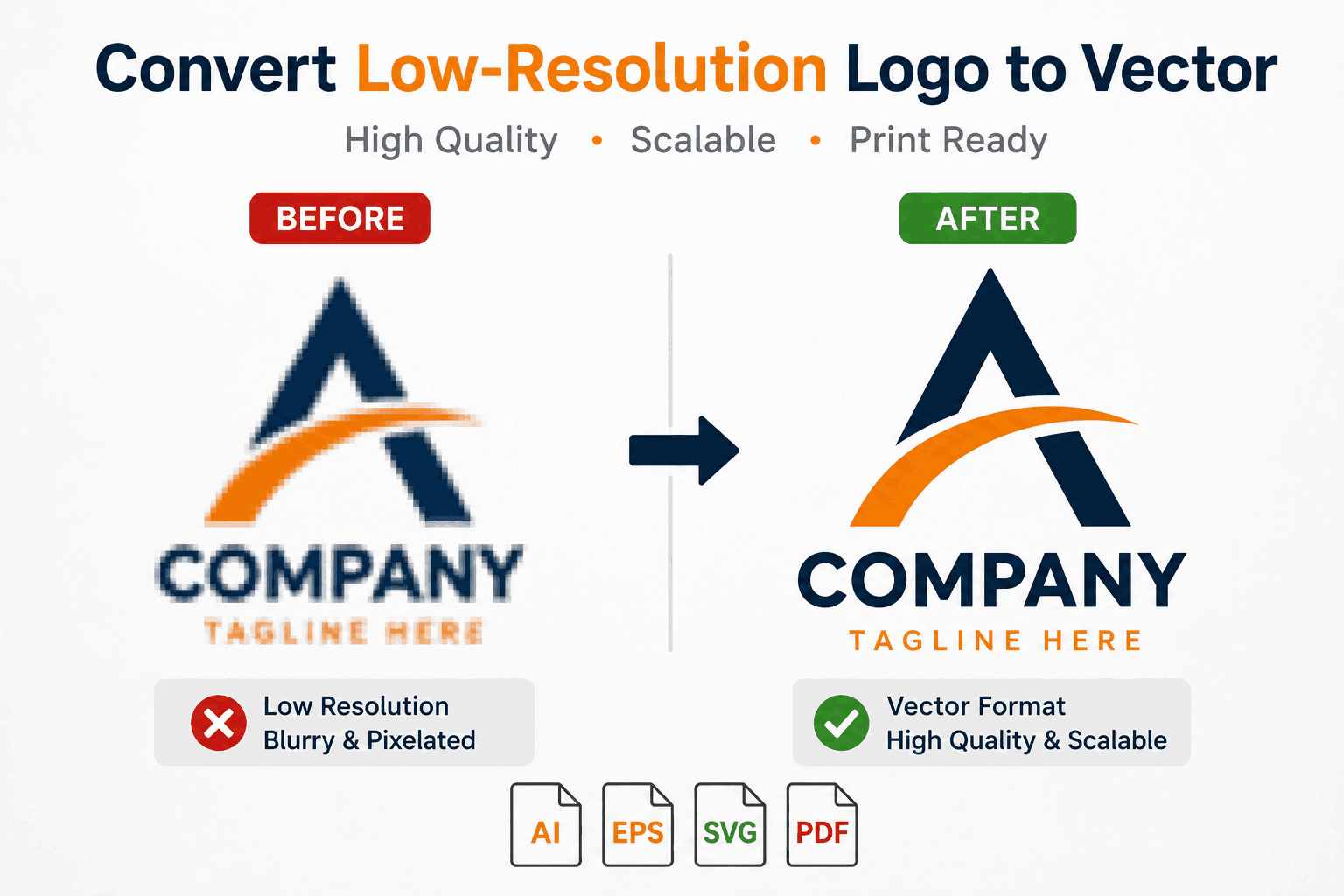
Many businesses still use blurry JPG or PNG logos for printing, embroidery, signage, and packaging. These low-quality files may look acceptable on small mobile screens, but once they are enlarged for banners, uniforms, or marketing materials, they quickly become pixelated and unprofessional.
This creates serious branding problems.
Customers often judge a business based on visual presentation. A blurry logo can reduce trust and make even a high-quality company appear outdated. That’s why businesses need to Convert Low-Resolution Logo to Vector formats for professional branding.
Vector graphics are scalable, editable, and print-ready. Unlike raster images, vector logos remain sharp and clean at every size. Whether a logo is used on business cards, websites, embroidery, packaging, or vehicle wraps, vector artwork maintains consistent quality everywhere.
In this guide, you’ll learn how to convert low-resolution logos into professional vector graphics, why vectorization matters, and how it improves branding quality and production results.
What Does It Mean to Convert Low-Resolution Logo to Vector?
Converting a low-resolution logo to vector means recreating a pixel-based image into scalable vector artwork using professional design software.
Raster images include:
- JPG
- PNG
- GIF
- BMP
These files are built using pixels.
When enlarged, raster images:
- Become blurry
- Lose sharpness
- Show jagged edges
Vector graphics are different because they use:
- Mathematical paths
- Curves
- Shapes
This allows vector logos to:
- Scale infinitely
- Stay sharp
- Remain editable
- Produce cleaner printing results
Raster vs Vector Graphics
Raster logos:
- Limited scalability
- Poor for large printing
- Difficult to edit
Vector logos:
- Fully scalable
- High-quality
- Editable
- Print-ready
This is why professional businesses prefer vector artwork.
Common Vector File Formats
Professional vector conversion usually includes:
- AI
- EPS
- SVG
These formats are suitable for:
- Printing
- Embroidery
- Packaging
- Signage
- Websites
- Marketing materials
Why Businesses Need to Convert Low-Resolution Logo to Vector
Modern branding requires scalable and professional artwork.
Better Print Quality
Vector logos create:
- Sharp edges
- Smooth curves
- Cleaner details
This improves:
- Business cards
- Banners
- Packaging
- Promotional products
Improved Embroidery Results
Embroidery machines work better with clean vector artwork.
Vector conversion improves:
- Stitch accuracy
- Edge clarity
- Detail quality
This creates better embroidery on:
- Uniforms
- Caps
- Jackets
- Apparel
Stronger Branding Consistency
Businesses use logos across:
- Websites
- Social media
- Packaging
- Signage
- Advertisements
Vector graphics maintain consistent quality everywhere.
Easier Editing and Updates
Vector files allow designers to:
- Resize logos
- Change colors
- Modify layouts
- Create alternate versions
This provides long-term branding flexibility.
Professional Business Image
Customers notice visual quality immediately.
Professional vector logos help businesses appear:
- More reliable
- More modern
- More trustworthy
Step-by-Step Process to Convert Low-Resolution Logo to Vector
Professional vector conversion follows a structured workflow to ensure quality.
Step 1: Analyze the Original Logo
The designer reviews:
- Resolution
- Typography
- Colors
- Shapes
- Complexity
This determines the best recreation strategy.
Step 2: Import the Raster File
The original JPG or PNG logo is imported into vector software such as Adobe Illustrator.
Step 3: Manual Shape Recreation
Professional designers manually redraw:
- Shapes
- Curves
- Icons
- Borders
Manual tracing creates cleaner results than automatic software.
Step 4: Typography Recreation
Blurry text is recreated for:
- Better readability
- Cleaner appearance
- Improved consistency
Step 5: Color Matching
Colors are carefully matched using:
- RGB values
- CMYK values
- Pantone systems
This ensures branding consistency across digital and print platforms.
Step 6: Path Optimization
Curves and paths are refined to improve:
- Scalability
- Smoothness
- Printing quality
Step 7: Export Vector Files
Final artwork is exported into:
- AI
- EPS
- SVG
These formats support different production needs.
Step 8: Quality Testing
The final logo is tested at different sizes to ensure:
- Sharpness
- Accuracy
- Scalability
This guarantees professional-quality results.
Expert Tips for Better Vector Conversion
Following professional tips helps businesses achieve better results.
Use the Highest Quality Source Image
Higher-quality source files improve vector accuracy.
Avoid Automatic Vectorization Tools
Auto-tracing software often creates:
- Jagged edges
- Rough curves
- Poor typography
Keep Logo Designs Simple
Simple logos:
- Scale better
- Print cleaner
- Work better for embroidery
Request Multiple File Formats
Always request:
- AI
- EPS
- SVG
This ensures future flexibility.
Test Before Production
Always test vector files before:
- Printing
- Embroidery
- Packaging production
This prevents expensive mistakes.
Common Mistakes Businesses Make
Many companies reduce branding quality through avoidable mistakes.
Using Tiny PNG Files
Very small images often produce poor-quality vectors.
Choosing Cheap Services
Low-cost providers frequently use automatic tracing tools.
Ignoring Production Requirements
Different industries require proper file preparation.
Not Saving Editable Files
Without editable vectors, future branding updates become difficult.
Using Different Logo Versions
Inconsistent branding weakens business identity.
Real Examples and Case Studies
Apparel Brand Example
A clothing company converted its blurry PNG logo into vector artwork.
Results included:
- Better embroidery quality
- Cleaner printing
- Stronger branding consistency
Restaurant Business Example
A restaurant upgraded its old raster logo for packaging and signage.
Results included:
- Sharper menus
- Better signage
- More professional presentation
These examples show how vector conversion improves branding and production quality.
Conclusion
Blurry and low-quality logos create major problems for branding, printing, embroidery, and business presentation. Poor artwork can reduce customer trust and make businesses appear unprofessional.
That’s why companies need to Convert Low-Resolution Logo to Vector formats for professional use.
Professional vector conversion creates scalable, editable, and print-ready artwork suitable for websites, packaging, embroidery, signage, and marketing materials.
From better print quality to stronger branding consistency, vector graphics provide long-term value and flexibility for modern businesses.
If you want cleaner visuals, sharper logos, and professional branding results, converting your low-resolution logo into vector artwork is one of the smartest investments your business can make.
👉 Upgrade your logo today with professional vector conversion services and improve your branding everywhere.
FAQs
1. What does it mean to convert low-resolution logo to vector?
It means recreating a blurry or pixelated logo into scalable vector artwork suitable for printing and professional branding.
2. Why are vector logos better than PNG or JPG files?
Vector logos remain sharp at every size and produce cleaner printing and embroidery results.
3. What file formats are used for vector logos?
Common vector formats include:
- AI
- EPS
- SVG
4. Can blurry logos be converted into vectors?
Yes. Professional designers can manually recreate blurry logos into clean vector graphics.
5. Why is manual vectorization better than automatic tracing?
Manual vectorization creates smoother curves, cleaner typography, and more accurate artwork than automatic software.