


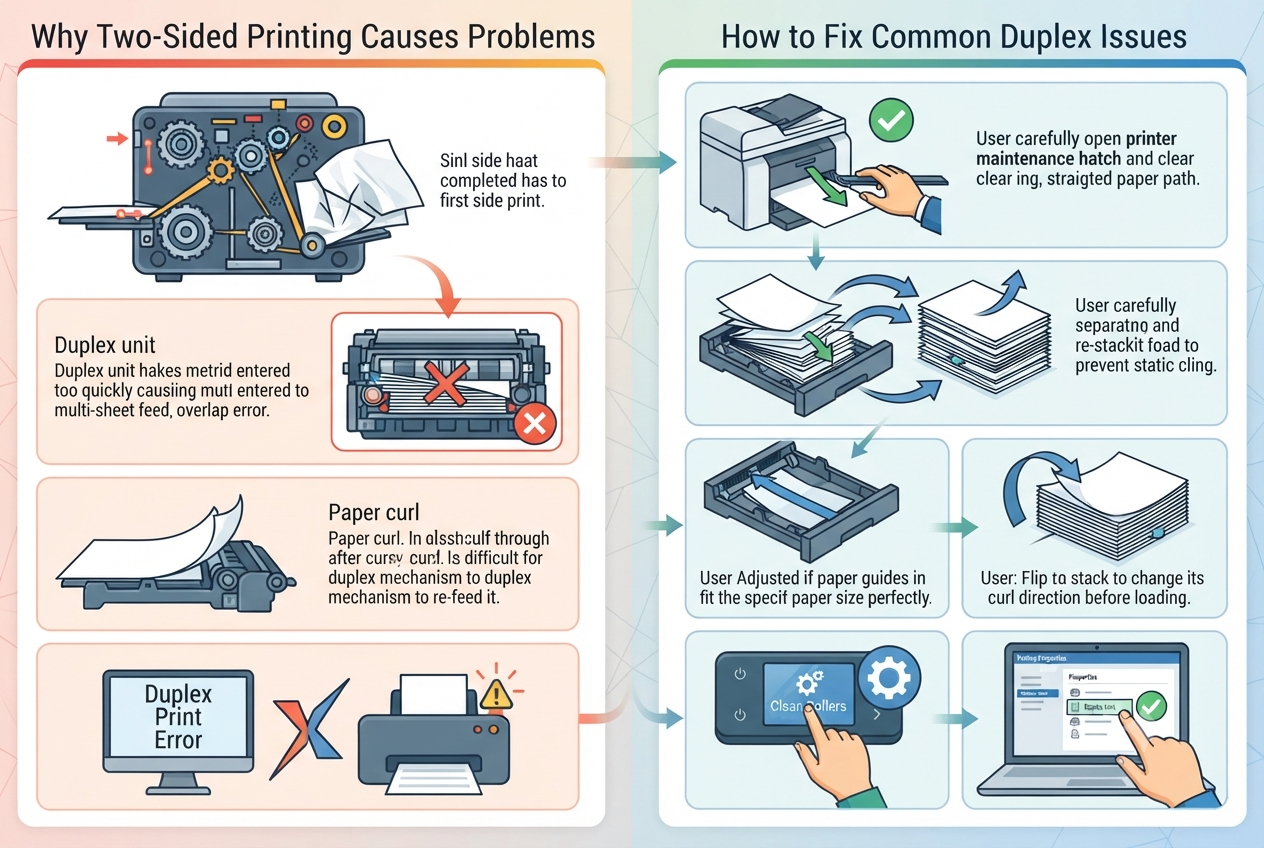
Two-sided printing is a useful feature for anyone who wants to reduce paper consumption and create more compact documents. However, automatic duplex printing adds another step to the paper path, which means there are more opportunities for feeding and alignment problems. If you regularly experience duplex printing problems, the cause may be related to paper, printer settings, rollers, or the internal duplex mechanism.
Before assuming that the printer needs expensive repairs, there are several practical checks worth performing.
What Is Duplex Printing?
Duplex printing means printing on both sides of a sheet automatically. Instead of sending a completed page directly to the output tray, the printer temporarily moves the paper through an additional path so the second side can be printed.
Different printers use different mechanisms. Some automatically reverse the sheet internally, while others use a dedicated duplex unit.
Because the paper has to travel through an additional route, correct paper size, paper condition, and printer settings become particularly important.
Check the Paper Type and Condition
Paper quality can have a noticeable effect on two-sided printing.
Sheets that are curled, damp, wrinkled, or damaged may travel through the duplex path incorrectly. Paper that has been stored in a humid environment can also become more difficult for the printer to feed consistently.
Use paper recommended for your printer and make sure the stack is stored in a dry location. Before loading a fresh stack, fan the sheets gently and remove any pages with bent corners.
For regular office documents, using the recommended standard paper weight is usually the safest option.
Confirm the Paper Size
A mismatch between the paper loaded in the tray and the size selected in the printer settings can create problems.
For example, if the tray contains Letter paper but the computer is configured for a different size, the printer may pause, feed the paper incorrectly, or produce unexpected results.
Check both the printer’s control panel and the computer’s print settings. Make sure the selected paper size matches the actual paper in the tray.
Check the Duplex Setting
Sometimes the printer is functioning correctly but the computer’s print settings are causing confusion.
Open the print dialog before sending a document and check whether two-sided printing is enabled. Depending on the printer and operating system, this option may appear as Duplex, Two-Sided, or Print on Both Sides.
If you are experiencing repeated problems, temporarily disable duplex printing and send a single-sided test page.
If single-sided printing works normally while two-sided printing consistently fails, the problem is more likely connected to the duplex process than to the printer’s basic printing function.
Look for Paper Fragments
A small piece of torn paper can cause repeated problems inside the duplex path.
If a sheet previously jammed while printing on both sides, carefully inspect the accessible paper path after powering down the printer. Look for small scraps around rollers, rear access panels, and the duplex unit.
Do not force internal components or pull paper aggressively. A torn sheet can leave small pieces behind, and those pieces can interfere with sensors or rollers.
Some printers may continue displaying a jam-related error even when no complete sheet is visible.
Clean the Rollers Carefully
Printer rollers need sufficient grip to move paper through the machine.
Dust, paper fibres, and other debris can accumulate on the rollers over time. If the rollers become dirty or worn, the printer may struggle to move paper through the duplex path correctly.
Follow the manufacturer’s maintenance instructions for cleaning the rollers. Avoid spraying liquid directly inside the printer or using unsuitable cleaning products.
If rollers are visibly damaged or worn, cleaning may not solve the problem and replacement may eventually be necessary.
Test Different Documents
Not every duplex problem is caused by the printer.
A document containing unusual page sizes, complex graphics, or mixed orientations may behave differently from a simple text document.
Try printing a basic two-page document on both sides. If the simple test works correctly, the original document or its print settings may be responsible.
This type of controlled test is useful because it removes unnecessary variables from the troubleshooting process.
Check for Driver Problems
The printer driver controls many printing functions, including duplex settings.
If two-sided printing stopped working after a Windows or macOS update, the driver may need to be updated or reinstalled.
Download the appropriate driver for your exact printer model and operating system from the manufacturer’s official support resources. Avoid installing drivers intended for similar but different models.
Keeping printer software current can also improve compatibility with newer operating-system versions.
When Professional Troubleshooting Is Necessary
If single-sided printing works but duplex printing continues to produce jams, errors, or incomplete pages, the internal duplex mechanism may require further investigation.
A structured printer troubleshooting process can help determine whether the problem is caused by paper handling, sensors, rollers, software, or the duplex assembly itself.
Repeated errors should not simply be ignored. Continuing to operate a printer with a mechanical problem can potentially cause additional wear.
How Regular Maintenance Can Help
Basic printer maintenance can reduce the likelihood of repeated paper-feed problems.
Keep the paper tray clean, store paper correctly, remove scraps after jams, and follow the manufacturer’s recommended maintenance schedule.
It is also useful to avoid overloading the paper tray and to keep the paper guides properly positioned. Guides that are too loose or too tight can affect how sheets enter the printer.
Final Thoughts
Two-sided printing provides a convenient way to save paper, but it requires more precise paper movement than standard single-sided printing.
If duplex printing starts causing problems, begin with simple checks: verify paper quality and size, inspect the print settings, test a basic document, and look for debris in accessible areas.
If the printer continues to experience jams or errors only during two-sided printing, the duplex mechanism, sensors, rollers, or driver may need further attention. A systematic approach can help identify the cause before you decide that the entire printer needs replacement.