

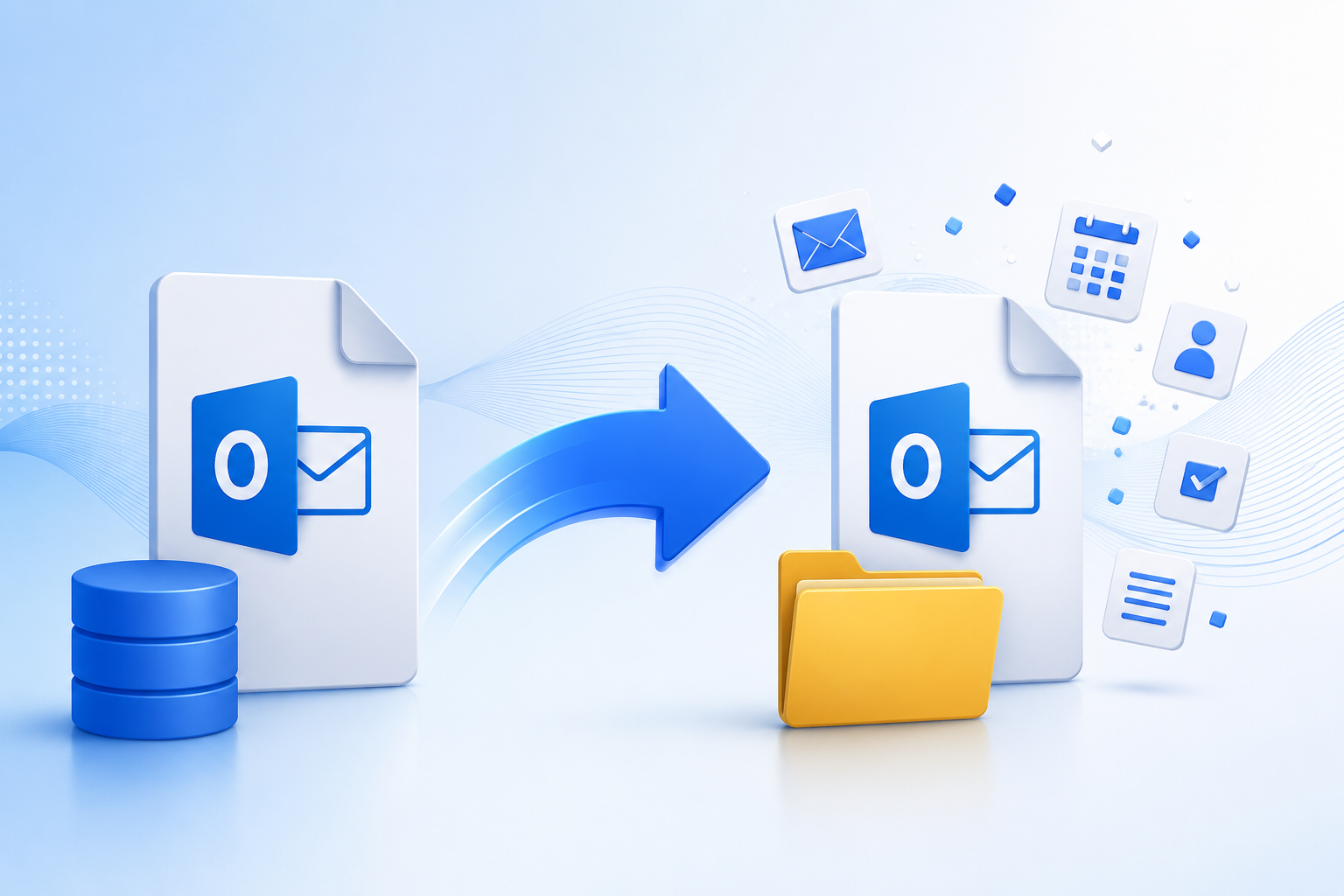
Microsoft Outlook is the backbone of communication for millions of professionals worldwide. It uses two primary file formats: OST (Offline Storage Table) and PST (Personal Storage Table). OST files allow you to work offline and sync changes when connected to the Exchange server, while PST files are portable and ideal for backup, migration, or archiving.
Why Convert OST to PST?
There are several scenarios where OST to PST conversion becomes necessary:
-
Exchange Server crash: OST files allow offline access, but converting them to PST ensures permanent backup.
-
Migration to a new system: PST files are portable and can be imported into Outlook on another computer.
-
Recovering orphaned OST files: If your Outlook profile is deleted or Exchange account removed, OST files become inaccessible.
-
Backup purposes: Converting OST to PST provides a secure backup of mailbox data.
-
Office 365 migration: PST files can be imported directly into Microsoft 365 mailboxes.
Manual Methods to Convert OST to PST
Manual methods are free and built into Outlook, but they come with limitations. Let’s explore them:
1. Export via Outlook Import/Export Wizard
Steps:
-
Open Outlook with the original Exchange profile.
-
Go to File → Open & Export → Import/Export.
-
Select Export to a file → Outlook Data File (.pst).
-
Choose folders to export.
-
Save the PST file to your desired location.
Pros: Free, built-in. Cons: Requires access to the original profile; cannot export orphaned OST files.
2. Archive Mailbox Data
Steps:
-
In Outlook, go to File → Options → Advanced → AutoArchive Settings.
-
Choose folders and set archiving rules.
-
Archived data is saved as PST files.
Pros: Good for reducing OST size. Cons: Only archives older items; not suitable for complete mailbox conversion.
3. Drag & Drop Method
Steps:
-
Create a new PST file in Outlook.
-
Drag and drop mailbox folders from OST to PST.
Pros: Simple for small mailboxes. Cons: Manual, tedious, risk of missing items.
Professional Tools for Secure Conversion
Manual methods fail when dealing with orphaned OST files, corrupted OSTs, or large mailboxes. Professional tools ensure data integrity, folder hierarchy preservation, and complete conversion.
Shoviv OST to PST Converter
-
Converts OST to PST without data loss.
-
Supports large OST files.
-
Provides preview option before conversion.
-
Allows direct migration to Office 365 and Exchange Server.
-
Preserves folder hierarchy and metadata.
-
Offers advanced filtering for selective conversion.
Stellar Converter for OST
-
Recovers inaccessible OST files.
-
Converts to PST, MSG, EML, RTF, HTML, and PDF formats.
-
Exports directly to Office 365.
-
User-friendly interface with preview option.
Kernel for OST to PST
-
Handles corrupted and orphaned OST files.
-
Maintains data integrity during conversion.
-
Supports migration to cloud platforms.
Safety Tips for OST to PST Conversion
-
Always back up OST files before conversion.
-
Use trusted tools to avoid malware risks.
-
Avoid manual drag-and-drop for large mailboxes.
-
Ensure Outlook is closed during conversion.
-
Store converted PST files securely.
Comparison Table
| Tool | Best For | Strengths | Limitations |
|---|---|---|---|
| Outlook Import/Export | Simple conversion | Free, built-in | Requires Exchange profile |
| Shoviv OST Converter | Large files & migration | Direct to Office 365/Exchange, preview | Paid license |
| Stellar Converter | Enterprises | Multiple formats, cloud export | Premium pricing |
| Kernel Converter | Corrupted OST | Cloud migration, integrity | Paid license |
Preventing OST File Issues
-
Regularly back up Outlook data.
-
Avoid storing OST files on unstable drives.
-
Keep Outlook updated.
-
Use antivirus protection.
-
Archive old emails to reduce OST size.
Conclusion
Converting OST to PST without data loss is crucial for backup, migration, and recovery. While manual methods like Outlook’s Import/Export wizard work for simple cases, they cannot handle orphaned or corrupted OST files. For secure, complete, and efficient conversion, professional tools such as Shoviv OST to PST Converter, Stellar Converter for OST, and Kernel OST to PST Converter are the best solutions.
Frequently Asked Questions
What causes OST file corruption?
Oversized files, abrupt shutdowns, malware, or hardware issues.
Can I convert orphaned OST files manually?
No. Manual methods require access to the original Outlook profile. Use professional tools instead.
Is data loss possible during conversion?
Yes, with manual methods. Professional tools ensure safe conversion without data loss.
Can I import converted PST files into Outlook?
Yes. Use Outlook’s Import/Export wizard to import PST files.
Which tool is best for large OST files?
Shoviv OST to PST Converter is highly recommended for large files.
Can I convert OST to PST without Outlook?
Yes, professional tools can convert orphaned OST files without requiring Outlook.