


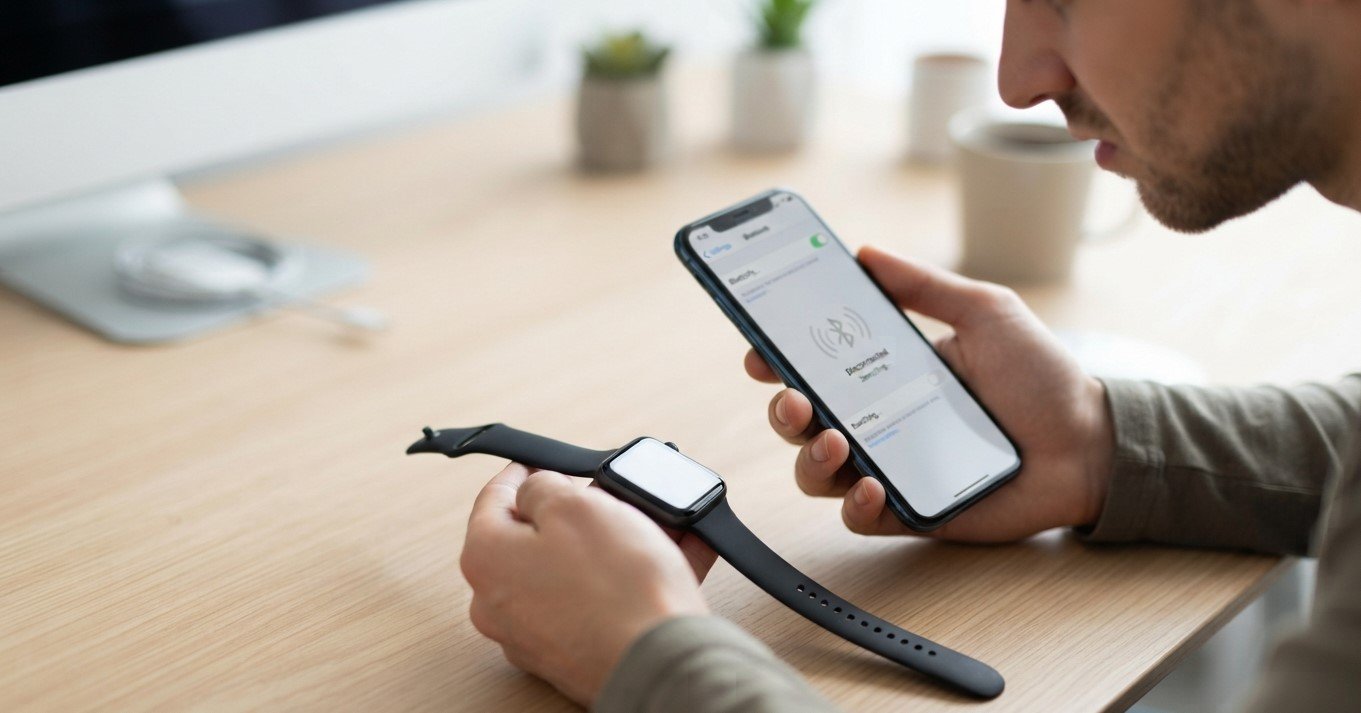
Smartwatches have become useful companions for smartphones, helping users check notifications, track fitness activities, answer calls, control music, and access other features without constantly reaching for their phones. However, these features depend on a reliable connection between the smartphone and smartwatch. When your smartphone refuses to connect, repeatedly disconnects, or cannot find the watch, it can be frustrating.
Mobile Device Techs understands how important a dependable smartphone connection can be for everyday use. Whether you need Cell Phone Repair in Douglasville, GA, Samsung Tablet Repair in Douglasville, GA, Samsung Phone Repair Douglasville, GA, or iPhone repair in Douglasville, GA, identifying the source of a connectivity problem is an important first step toward finding the right solution.
A smartphone may fail to connect to a smartwatch because of Bluetooth problems, outdated software, incorrect settings, low battery levels, pairing conflicts, or compatibility limitations. Fortunately, many connection issues can be resolved with a few straightforward troubleshooting steps.
In this guide, we will explain the most common reasons a smartphone will not connect to a smartwatch and what you can do to restore the connection.
1. Make Sure Bluetooth Is Turned On
Bluetooth is one of the primary technologies used to connect smartphones and smartwatches. If Bluetooth is disabled, the phone may not be able to detect or communicate with the watch.
Open your phone’s connectivity settings and confirm that Bluetooth is enabled. If it is already turned on, switch it off, wait several seconds, and turn it back on.
Then place the smartwatch close to the smartphone and try searching for available devices again.
Keeping the devices close together during the initial pairing process can also prevent connection problems caused by distance or interference.
2. Check the Smartwatch Battery
A smartwatch with a very low battery may have difficulty establishing or maintaining a connection.
Before troubleshooting complicated settings, check the watch’s battery level. If it is nearly empty, place it on its charger and allow it to charge for a while.
Your smartphone should also have sufficient battery power. Although Bluetooth does not normally consume a large amount of power, extremely low battery levels can affect certain device functions.
After charging both devices, restart the pairing process.
3. Restart Both Devices
Temporary software glitches can prevent a smartphone and smartwatch from communicating correctly.
A simple restart can refresh Bluetooth services and clear temporary system errors.
Turn off the smartwatch and smartphone, wait briefly, and then turn them back on. Once both devices have restarted, enable Bluetooth and try connecting again.
This is one of the simplest troubleshooting methods and is worth trying before changing more advanced settings.
4. Keep the Devices Close Together
Bluetooth connections generally work best when paired devices are relatively close to one another.
During setup, keep the smartwatch within a short distance of the smartphone. Avoid attempting to pair the devices from different rooms or areas with walls and other obstacles between them.
Once the connection has been established, you can test the normal operating range of the watch.
If the connection works only when the devices are extremely close together, there may be interference or a hardware-related problem.
5. Check Whether the Watch Is Already Connected to Another Phone
A smartwatch may already be paired with another smartphone. If so, your phone may have difficulty establishing a new connection.
Check the smartwatch’s Bluetooth or connection settings and determine whether it is still linked to another device.
If you recently changed phones, you may need to disconnect the watch from the previous phone before pairing it with the new one.
Some smartwatches also require a reset before they can be paired with a different smartphone. Follow the manufacturer’s instructions before performing a reset because it may remove stored settings or data.
6. Forget the Smartwatch and Pair It Again
If the smartphone recognizes the smartwatch but refuses to connect, removing the existing pairing can sometimes solve the problem.
On your smartphone, open Bluetooth settings and find the smartwatch in the list of paired devices. Select the option to forget, unpair, or remove the device.
After doing this, restart Bluetooth and search for the smartwatch again.
Place the watch into pairing mode and follow the instructions shown on your smartphone.
Re-pairing creates a fresh connection and can resolve corrupted or incomplete Bluetooth pairing information.
7. Check the Smartwatch’s Companion App
Many smartwatches do not rely solely on the phone’s Bluetooth settings. They also use a dedicated companion application.
Depending on the smartwatch, the required app may manage pairing, notifications, firmware updates, health features, and other settings.
Make sure the correct companion application is installed on your phone. Open the application and check whether it recognizes the smartwatch.
If the app is outdated, update it through the appropriate app store. If the app is malfunctioning, closing and reopening it may help.
In some cases, reinstalling the companion application can resolve persistent connection problems.
8. Update Your Smartphone and Smartwatch
Outdated software can cause compatibility and connectivity problems.
Check whether your smartphone has an available operating-system update. You should also check the smartwatch’s companion app for firmware updates.
Software updates may contain bug fixes, security improvements, Bluetooth enhancements, and compatibility changes.
Before updating, make sure your devices have enough battery power and a stable internet connection.
After completing the updates, restart both devices and attempt to pair them again.
9. Check Smartphone Compatibility
Not every smartwatch works with every smartphone.
Some watches have operating-system requirements or specific compatibility limitations. Certain features may also require a particular version of Android or iOS.
If you recently purchased a new smartwatch or changed your smartphone, check the manufacturer’s compatibility requirements.
A watch that worked with an older phone may not necessarily support every feature on a newer or different operating system.
Compatibility problems generally cannot be solved by changing Bluetooth settings, so checking this early can save time.
10. Turn Airplane Mode Off
Airplane Mode can disable or restrict wireless communication features.
Check your smartphone and make sure Airplane Mode is disabled. If it is already off, you can temporarily turn it on and then off again to refresh wireless connections.
After disabling Airplane Mode, turn Bluetooth back on and attempt to reconnect the smartwatch.
Also check the smartwatch itself for any airplane or offline mode that could interfere with its wireless connections.
11. Reduce Bluetooth Interference
Bluetooth signals can sometimes be affected by wireless interference or a crowded environment with many connected devices.
If your phone is connected to wireless headphones, a vehicle, speakers, or other Bluetooth accessories, temporarily disconnect unnecessary devices.
Then try connecting only the smartwatch.
This can help determine whether another device or connection is interfering with the pairing process.
Moving away from other wireless equipment may also help during initial setup.
12. Check Location and Permission Settings
Some smartphone platforms and smartwatch applications may require specific permissions to discover or communicate with nearby devices.
Open the companion app’s permissions and check whether it has the necessary access.
Depending on your phone and app, permissions may include Bluetooth or nearby-device access, notifications, location services, and background activity.
If a required permission was accidentally denied, the watch may not function correctly even though Bluetooth appears to be enabled.
Review these settings carefully and then try pairing again.
13. Reset Network Settings
If your smartphone continues to have Bluetooth problems with multiple devices, resetting network settings may help.
Network-reset options vary by phone manufacturer, but they can typically reset Bluetooth, Wi-Fi, and related connectivity configurations.
Before using this option, remember that resetting network settings may remove saved Wi-Fi networks and Bluetooth pairings.
After the reset, reconnect your smartwatch as a new device.
If your phone has connectivity problems with several Bluetooth devices, this step can be particularly useful for identifying whether the issue is related to the phone’s wireless configuration.
14. Test the Smartphone With Another Bluetooth Device
Try connecting your smartphone to another Bluetooth accessory, such as wireless headphones or a speaker.
If other Bluetooth devices connect normally but the smartwatch does not, the problem may be related to the watch, compatibility, or its companion application.
On the other hand, if the smartphone cannot connect to multiple Bluetooth devices, the phone itself may have a software or hardware issue.
This simple test can help narrow down the source of the problem.
15. When Should You Seek Professional Repair?
If you have tried the troubleshooting steps above and the smartwatch still refuses to connect, professional assistance may be appropriate.
Hardware problems can sometimes affect Bluetooth connectivity. A damaged smartphone antenna, internal component, or wireless module may prevent reliable connections.
Physical damage can also contribute to connectivity problems. If your phone has recently been dropped, exposed to liquid, or repaired, mention this when having the device inspected.
Professional technicians can evaluate the phone and determine whether the issue is caused by software, settings, or hardware.
How to Prevent Future Smartwatch Connection Problems
Once your smartwatch is working properly, a few habits can help maintain a reliable connection.
Keep both devices updated and use the manufacturer’s recommended companion application. Avoid repeatedly pairing and unpairing devices unless necessary.
Keep the smartwatch and smartphone charged, especially before important activities or travel. Also avoid unnecessary wireless interference by disconnecting Bluetooth devices you are not using.
If you replace your smartphone, follow the smartwatch manufacturer’s recommended transfer and pairing process instead of immediately attempting to pair it as a completely new device.
Regularly reviewing app permissions can also help prevent unexpected connectivity problems.
Final Thoughts
A smartphone that will not connect to a smartwatch can often be fixed by checking Bluetooth, restarting both devices, charging the batteries, removing old pairings, updating software, or reinstalling the smartwatch’s companion application. Compatibility and hardware problems can also cause persistent connection failures, so identifying the exact cause is important.
If your smartphone continues to experience Bluetooth or connectivity problems after basic troubleshooting, professional inspection can help determine whether the problem is software-related or caused by damaged hardware.
For customers seeking dependable device assistance, Mobile Device Techs can provide support for Cell Phone Repair in Douglasville, GA, Samsung Tablet Repair in Douglasville, GA, Samsung Phone Repair Douglasville, GA, and iPhone repair in Douglasville, GA. Proper diagnosis and repair can help restore reliable connectivity and keep your smartphone ready to work with the accessories you use every day.