

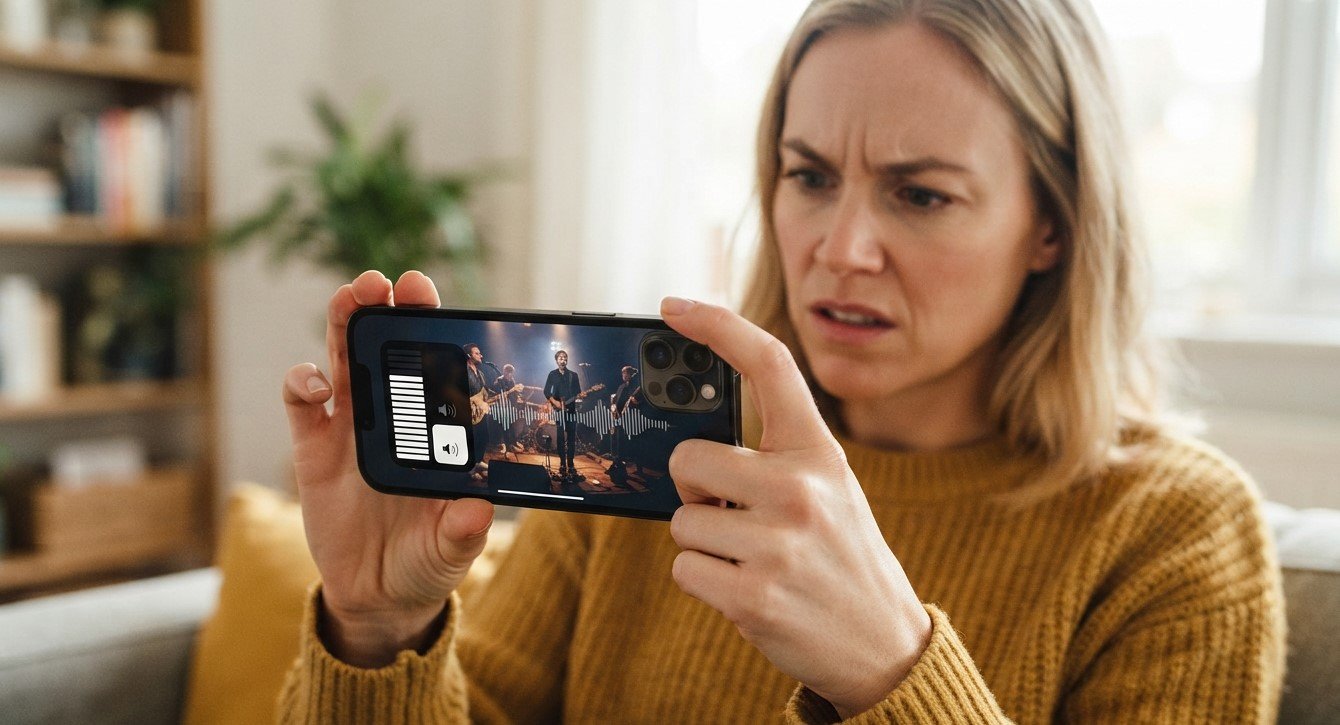
Is your iPhone speaker suddenly quieter than usual, even though the volume is turned all the way up? Low speaker volume can make phone calls difficult to hear, reduce the quality of music and videos, and make notifications easy to miss. While a quiet speaker can sometimes be caused by a simple setting or blocked speaker opening, persistent low volume may indicate a software or hardware problem.
At Avenue D Cellular, we understand how frustrating audio problems can be when you rely on your iPhone every day. If you are searching for cell phone repair brooklyn ny because your iPhone speaker has become unusually quiet or need iphone repair brooklyn for a damaged speaker, understanding the possible causes can help you troubleshoot the issue before seeking professional service.
This guide covers the most common reasons an iPhone speaker may sound quiet at full volume and the solutions you can try.
Table of Contents
- Why Is My iPhone Speaker So Quiet?
- Common Causes of Low iPhone Speaker Volume
- Check the Volume Level
- Check Your iPhone’s Volume Limit
- Turn Off Silent Mode and Focus
- Remove Your Case or Screen Protector
- Clean the Speaker Openings
- Check Bluetooth and Audio Output
- Restart Your iPhone
- Check Accessibility Audio Settings
- Update iOS
- Check for Water or Moisture
- Could the Speaker Be Damaged?
- When Should You Get Professional iPhone Repair?
- How to Prevent iPhone Speaker Problems
- Frequently Asked Questions
- CTA
Why Is My iPhone Speaker So Quiet?
If your iPhone volume is at maximum but the sound remains unusually quiet, there may be a problem with the speaker, audio settings, software, or something physically blocking the speaker opening.
Apple recommends checking settings, removing cases and screen protectors, inspecting the speaker openings for dirt or blockage, and testing sound through the device when troubleshooting speaker problems.
The important thing is to determine whether the problem affects all audio or only a specific function.
For example, music, videos, ringtones, notifications, and speakerphone calls can provide different clues about the source of the problem.
Common Causes of Low iPhone Speaker Volume
Several issues can make an iPhone speaker sound quieter than normal:
- Volume is not actually at its maximum for the type of audio being played
- A speaker volume limit is enabled
- Dirt or debris is blocking the speaker opening
- A case or screen protector is interfering with sound
- Bluetooth is directing audio to another device
- Silent or Focus settings are affecting certain sounds
- A temporary software problem is affecting audio
- The speaker has been exposed to moisture
- The speaker has been physically damaged
- The internal speaker component is beginning to fail
Identifying which symptoms you are experiencing can make troubleshooting much easier.
Check the Volume Level
The first step is to make sure the media volume is actually turned up.
Start playing a song or video, then press the Volume Up button several times.
You can also open Control Center and adjust the volume slider.
Apple notes that the volume buttons control media volume when media is playing, while at other times they can control ringtone, alert, and system sound volume.
This distinction is important because you may think the volume is at maximum when you are actually adjusting a different audio level.
Test Different Types of Audio
Try playing:
- A music track
- A YouTube or other video
- A ringtone
- A notification sound
- A speakerphone call
If only one type of audio is quiet, the problem may not be the physical speaker itself.
Check Your iPhone’s Volume Limit
Some iPhones include settings that can limit the maximum volume produced by the built-in speaker.
Depending on your iOS version, check:
Settings → Sounds & Haptics → Volume Limit
If Limit Maximum Volume is enabled, the speaker may not reach the volume you expect even when the volume slider appears to be turned up.
Apple documents a built-in speaker volume limit that can restrict maximum speaker volume.
Check the setting and adjust it if appropriate.
Turn Off Silent Mode and Focus
Silent Mode does not normally explain every low-volume problem, but it is worth checking when dealing with missing or quiet alerts and notifications.
If your iPhone has a Ring/Silent switch, make sure Silent Mode is not enabled. On supported iPhones with an Action button, check the current setting through the appropriate controls.
Also check:
Settings → Focus
Make sure a Focus mode such as Do Not Disturb isn’t preventing the sounds you are expecting.
Apple includes checking Silent Mode and Focus among its recommended steps for troubleshooting iPhone sound problems.
Remove Your Case or Screen Protector
A poorly fitted case or screen protector can sometimes interfere with the speaker or receiver openings.
Remove the case temporarily and test the speaker again.
Also check whether a screen protector covers or partially obstructs the earpiece area.
Apple recommends removing cases, films, and screen protectors while troubleshooting sound problems.
If the speaker becomes noticeably louder without the case, the accessory may be contributing to the problem.
Clean the Speaker Openings
One of the most common physical causes of a quiet speaker is blockage around the speaker openings.
Dust, lint, and other debris can accumulate over time, especially if you regularly carry your iPhone in a pocket or bag.
Inspect the speaker openings carefully.
If you can see debris, Apple recommends using a small, soft-bristled brush that is clean and dry to gently clean the speaker or receiver opening.
Avoid These Cleaning Methods
Do not use:
- Sharp objects
- Needles
- Pins
- Excessive force
- Liquid cleaners
- Aggressive compressed-air methods
Trying to push debris deeper into the speaker opening can potentially cause additional damage.
If you cannot safely remove the blockage, professional cleaning may be preferable.
Check Bluetooth and Audio Output
Your iPhone may be sending audio to another connected device instead of its built-in speaker.
Check whether Bluetooth headphones, AirPods, a car audio system, or another wireless speaker is connected.
You can open Control Center and check the current audio output.
If the audio is being routed to another device, your iPhone’s built-in speaker may appear to be unusually quiet or completely silent.
Disconnect the external device and test the iPhone speaker again.
Restart Your iPhone
A temporary software problem can sometimes affect audio output.
Restart your iPhone and test the speaker after it turns back on.
This is especially useful if the low-volume problem appeared suddenly without any physical damage or changes to your settings.
If the issue disappears after restarting but returns frequently, there may be an underlying software or hardware problem that deserves further investigation.
Check Accessibility Audio Settings
Your iPhone includes audio settings that can affect how sound is presented.
Go to:
Settings → Accessibility → Audio & Visual
Check the Balance slider.
If the balance has been moved significantly to one side, audio may appear weaker from one speaker or channel. Apple provides controls for stereo balance and Mono Audio in this section.
Make sure the balance is positioned appropriately for normal stereo playback.
Update iOS
If your iPhone speaker suddenly became quiet and basic troubleshooting hasn’t helped, check for a software update.
Go to:
Settings → General → Software Update
If an update is available, install it according to Apple’s instructions.
Software updates can include bug fixes and improvements that may resolve certain system-related problems.
After updating, restart the iPhone if necessary and test the speaker again.
Check for Water or Moisture
If your iPhone recently came into contact with water or another liquid, moisture around the speaker opening can temporarily affect sound quality.
You may notice:
- Muffled audio
- Low volume
- Crackling
- Distorted sound
- Intermittent audio
Do not insert sharp objects into the speaker opening to try to remove moisture.
Avoid using excessive heat as well.
If the speaker continues to sound muffled after possible moisture exposure, professional inspection may be appropriate because liquid can potentially cause internal damage.
Could the Speaker Be Damaged?
Yes. If you’ve tried the basic troubleshooting steps and the speaker remains unusually quiet, a hardware problem is possible.
Potential causes include:
Physical Impact
A significant drop can damage the speaker or other internal components.
Liquid Damage
Moisture can affect speaker components and internal connections.
Worn or Damaged Speaker
A speaker can develop problems over time, particularly if the device has experienced repeated physical stress or environmental exposure.
Previous Repair Damage
If the speaker problem appeared after a screen, battery, charging-port, or other repair, the device may need to be inspected to determine whether something was affected during the repair process.
Test the Speaker With a Phone Call
Another useful test is to make a phone call and switch to speakerphone.
Listen carefully for:
- Very low volume
- Crackling
- Static
- Distortion
- Intermittent sound
Apple recommends testing speakerphone when troubleshooting sound problems.
If music and videos are loud enough but speakerphone calls remain unusually quiet, the issue may involve a different audio component or the call itself.
If all audio is quiet, the speaker hardware or a system-level issue becomes more likely.
When Should You Get Professional iPhone Repair?
You may want professional assistance if the speaker remains quiet after you’ve tried the basic troubleshooting steps.
Consider getting the device inspected if:
- The speaker is still quiet at maximum volume.
- Cleaning does not improve the sound.
- The problem started after a drop.
- The phone was exposed to water.
- You hear crackling or distortion.
- The speaker works intermittently.
- Both calls and media are affected.
- The problem began after another repair.
- Restarting and updating iOS do not help.
Apple states that if sound problems continue after its recommended troubleshooting steps, the device may require service.
If you need cell phone repair brooklyn ny, professional diagnosis can help determine whether your iPhone has a blocked speaker, software problem, damaged component, or another issue.
How to Prevent iPhone Speaker Problems
A few simple habits can help protect your iPhone’s speaker.
Keep the Speaker Openings Clean
Regularly inspect the speaker and receiver areas for visible dust or debris.
Use a Properly Fitted Case
Choose a case designed for your specific iPhone model so the speaker openings are not blocked.
Protect Your iPhone From Drops
A protective case can reduce the risk of internal damage caused by accidental impacts.
Avoid Unnecessary Liquid Exposure
Even when a device has some water-resistance protection, liquid exposure can still create problems under certain circumstances.
Don’t Use Sharp Objects for Cleaning
A pin or needle may seem convenient, but it can damage delicate speaker components or push debris deeper into the device.
Address Problems Early
If your speaker becomes unusually quiet, don’t wait until it stops working completely. Early diagnosis may make it easier to identify the source of the problem.
Frequently Asked Questions
Why is my iPhone speaker quiet even when the volume is at 100%?
Possible causes include blocked speaker openings, a volume limit, Bluetooth audio routing, software problems, moisture, or hardware damage. Check the volume settings, disconnect Bluetooth devices, inspect the speaker openings, and restart the iPhone.
Can dirt make an iPhone speaker quieter?
Yes. Dirt and debris can block the speaker opening and reduce perceived volume. Apple recommends checking the speaker opening and, when necessary, cleaning it gently with a small, clean, dry, soft-bristled brush.
Why is my iPhone speaker muffled after getting wet?
Moisture around the speaker can temporarily reduce sound quality and make the audio sound muffled or distorted. If the problem continues after the device has had time to dry naturally, professional inspection may be necessary.
Can a phone case make my iPhone speaker quiet?
Yes, a poorly fitted case or screen protector can partially obstruct the speaker or receiver. Remove the accessory temporarily and test the sound again.
Why is my iPhone speaker quiet during calls but loud for music?
Different iPhone speakers and audio paths can be involved depending on how you are using the device. If speakerphone calls are quiet while music is normal, test the receiver and speakerphone separately and consider professional diagnosis if the problem persists.
Does Bluetooth affect iPhone speaker volume?
Yes. If audio is being routed to AirPods, headphones, a car system, or another Bluetooth device, your iPhone’s built-in speaker may not be producing the sound you expect. Check the current audio output and disconnect external devices when testing.
Can an iOS update fix a quiet iPhone speaker?
If the problem is software-related, updating iOS may help. It is worth checking for available updates after trying basic troubleshooting.
Should I replace my iPhone if the speaker is quiet?
Not necessarily. A quiet speaker does not automatically mean the entire phone needs replacement. Professional diagnosis can determine whether the issue is caused by cleaning, settings, software, or a replaceable hardware component.
Get Professional Help for a Quiet iPhone Speaker
An iPhone speaker that sounds quiet at full volume can have several causes. Before assuming the speaker is damaged, check the volume settings, volume limit, Silent Mode, Focus, Bluetooth connections, case, speaker openings, and iOS version.
If the sound remains weak, muffled, distorted, or intermittent after these steps, the problem may require professional inspection.
At Avenue D Cellular, customers searching for cell phone repair brooklyn ny can get assistance with iPhone speaker problems and other device issues. If you’re looking for iphone repair brooklyn, professional diagnosis can help identify the actual cause before unnecessary parts are replaced.
Don’t let a quiet speaker make calls, music, videos, and notifications difficult to hear. Get your iPhone checked and find the appropriate solution for your device.
Need help with a quiet or damaged iPhone speaker? Contact Avenue D Cellular today for professional iPhone repair assistance.